Power BI “Themes” a Hidden Gem
Power BI has hidden gems that are not given enough credit and themes are just one of them. When developing dashboards how often do you sit back and say what can I do to make this look better? How can I add some pop or razzle dazzle to my PBIX? Maybe your report needs to be color blind accommodating. What is the easiest way to achieve these cases for professionals that are not data visualization developer? The Power BI community has stepped up to really help you in these areas with downloadable themes.
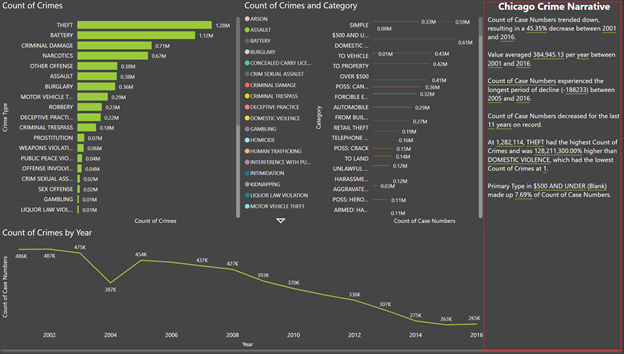
The Power BI community has been around for a while and continues to wow and impress. The way knowledge and solutions are shared, shows how contributors want to help enhance the quality and ease of producing solutions for developers and users. So how do themes fit into the grand scheme of things? Themes are templates of reports or dashboards with pre-built structure and pre-configured color palettes to get you a few steps ahead when your starting from scratch. Let’s take a quick look at a report I built using a theme.
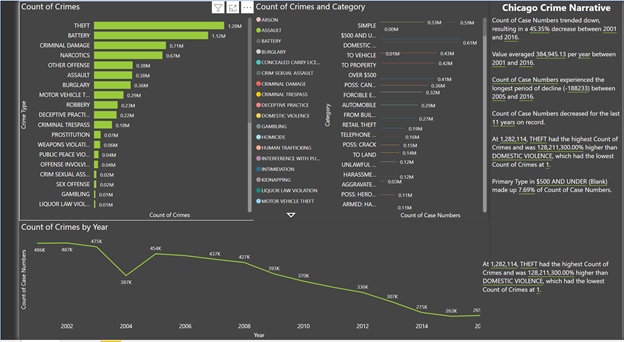
So first kudos and compliments to the creator of this theme Belisqui at Nowalls. The theme is similar to Microsoft Innovative theme for those who are consistently always on their monitor and just need something that’s not too hard on the eyes. Using a black background with a dark grey canvas. It also defaults all fonts to white the opposite of the default black font color. Then uses a color palette that fits the theme perfectly. So why not just go with the pre-built theme vs downloading one? There are a ton of other customization elements above that makes a difference. To name a few:
- Your data labels are pre-configured for visuals
- Grid Lines are automatically removed
- Your color palette is pre-configured
- Your text font and size has been established for each visual
Those are just some quick wins that you get when downloading a theme that’s already configured. If you want to change the colors, you can alter them as needed. But the bulk of the customization has already been done for you. Themes are stored and JSON files that break down each element within your Power BI PBIX and I will show you how to access and implement them.
Let’s first step through downloading and installing your first JSON theme file.
Here I have a blank canvas within my Power BI desktop.
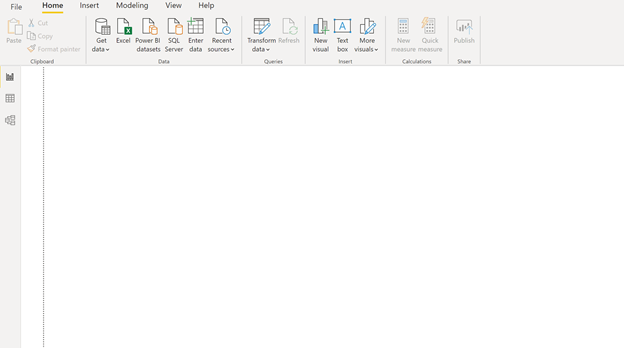
Navigate to the view Tab and you should see themes.

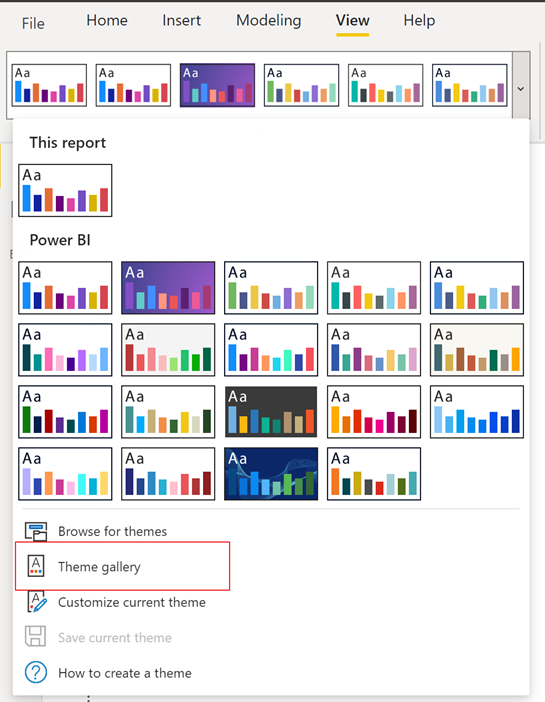
Power BI comes with a few pre-built themes that are already apart of Power BI desktop when you install it. However, we want something that’s already configured and all we want to do is start building visuals.
Click the drop down next to themes and select theme gallery:
This will automatically open a browser window and navigate you to the Power BI community themes gallery found here https://community.powerbi.com/t5/Themes-Gallery/bd-p/ThemesGallery.
Next find the theme that you’re interested in and click to preview it:
One benefit of the community page is you get to view the theme as an interactive dashboard:

But if you scroll down to the bottom there is a link to download the JSON file:
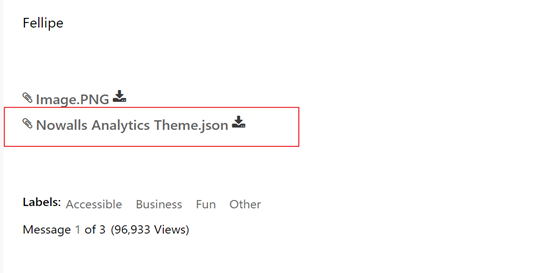
Once you download the file you can go back to the themes drop down in Power BI and browse to find the downloaded theme:

Once your theme is selected its automatically implemented to the PBIX you are currently working on with all of the templates default values.
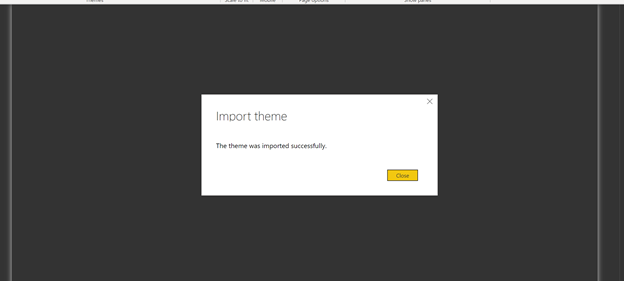
That’s it! You have imported your first theme. Ok so now becomes the real Power. All organizations have their own set of color schemes. You have the Ability to use a pre-built theme template and configuring it to your specifications and share across your organization. This provides a standard for your company’s Power BI reports. A good resource for creating your own themes can be found here https://docs.microsoft.com/en-us/power-bi/create-reports/desktop-report-themes. I hope you enjoyed learning how to implement themes in Power BI.