Changing the version of SSAS after installation
I recently ran into an issue where a newly created SQL Server environment was handed over to me with the wrong version of SSAS installed. It’s a common practice for many IT shops in the industry to segregate duties. Infrastructure Engineers/Sys Admins will build the server with the pre-installed applications and services for you and provide it to you ready to go.
Sometimes this doesn’t work out the best for DBA and developers. I found this out first hand a few months ago and ran into it again recently. Let me give you a little back more background and then my solution.
I was tasked with building out a data warehouse leveraging a SSAS Tabular model semantic layer. No problem let me start from the ground up and get as comfortable and knowledgeable with the data as possible. Built my tables fact and dims and now it was time to build my semantic model. Well I requested the server with SQL Server 2017 installed with SSAS tabular. I guess everyone is not in tune with Microsoft’s push towards using tabular more. So I received a server with SQL server installed but SSAS was installed with multidimensional.
What do you do now??
I didn’t want to wait on an uninstall and reinstall and I didn’t have the ability to do it myself. I would have had to send it back to the team that handed me the server to correct the issue. The problem is the time it takes for that to happen. Everyone is always busy and it seems like the turn-around time takes days. So understand analysis services framework I made a simple change in the configuration file.
**Just to note this is not a Microsoft support change however I have not had any issues to date on multiple environments. Also noting this was a clean install without any deployed analysis services databases.
Let’s take a look below at my current model configuration:
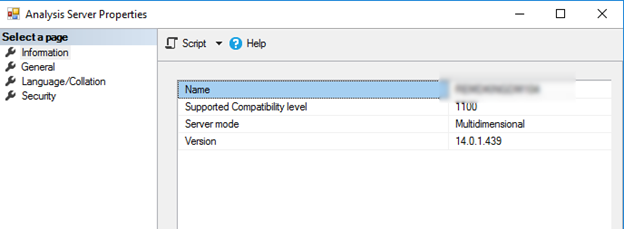
Now we need to modify the configuration file which typically can be found here:
C:\Program Files\Microsoft SQL Server\MSAS14.MSSQLSERVER\OLAP\Config
Start by opening the msmdsrv.ini file in administrative mode using notepad.
Once opened we are searching for The DeploymentMode:
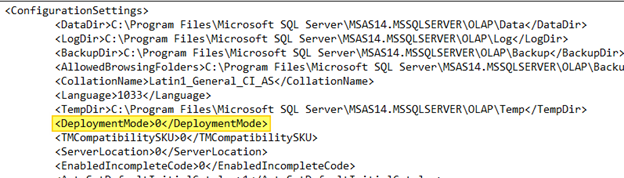
Here are the accepted values and the deployment models:
|
0 |
Multidimensional |
|
1 |
PowerPivot/SharePoint |
|
2 |
Tabular |
Alter the value to the deployment model you want.

Save the configuration file.
Restart the Analysis services from the SQL Server services console.
Check your new deployment model!

There you have it. I have just switched from a multidimensional model to tabular without doing a new install. I would consider this a SQL hack with SWAGG! Follow me for upcoming blogs in the near future.